

Closing the doors
Block an address, or the range behind it
An IP rule is the bluntest control you own. Written well it takes one noisy network out of your logs in a second. Written badly it blocks a mobile carrier, or it blocks you, and both mistakes are quiet until somebody complains.
What an IP rule stops, and what it does not
An IP rule blocks an address. It does not block a person, and it does not block software. That sounds obvious until you look at what the traffic hitting a WordPress site is made of.
Password guessing against wp-login.php is mostly distributed.
One campaign arrives from hundreds of compromised machines, each one
trying a handful of passwords, and blocking any single address moves the
count by a fraction of a percent. Blocking the whole network they belong
to often does move it, which is why the useful unit here is a range and
not an address.
Where an IP rule earns its place:
- One source, sustained. A scraper, a vulnerability scanner, or a
single machine that has decided your
xmlrpc.phpis interesting. It shows up as thousands of lines from one address. - A hosting range with no business here. Real visitors do not browse from a datacentre. If a whole provider network only ever appears in your log probing paths, it costs you nothing to remove it.
- An allow list on one door. Restricting
/wp-admin/andwp-login.phpto addresses you control is a stronger control than any password policy, because it removes the door instead of guarding it.
Where it fails, and these are the ones that cost you customers:
- Rotating addresses. Consumer broadband hands out a new address on a reboot. The attacker gets a new one too, and yours is now on the list you wrote yesterday.
- Shared addresses. Mobile carriers put tens of thousands of subscribers behind one address with carrier-grade NAT. Corporate offices do the same at a smaller scale. Blocking one address there blocks a crowd, and none of them will email you about it.
- Anything cheap to move. A blocked attacker rents another address and starts again the same day.
Treat an IP rule as noise reduction and as a door lock. A determined attacker walks around it, so pair it with controls that do not care where the request came from: rate limiting the login catches the distributed half that no address list will ever reach.
Reading CIDR, and the number you just typed
An IPv4 address is 32 bits, written as four numbers so humans can read it. The slash notation says how many of those bits are fixed. Everything after the fixed part is free to be anything, and every combination is in your rule.
That is the whole idea. 192.0.2.0/24 fixes the first 24 bits,
which is the first three numbers, and leaves the last one free: 256
addresses, 192.0.2.0 through 192.0.2.255. Each
bit you give back doubles the range.
| Prefix | Addresses | What it usually is |
|---|---|---|
/32 | 1 | One machine. The default when you paste a bare address. |
/30 | 4 | A point-to-point link. Rare in a block list. |
/28 | 16 | A small block sold to one customer by a hosting provider. |
/24 | 256 | The workhorse. Usually the smallest block that gets routed on its own, and the right first guess for "the neighbourhood around this address". |
/22 | 1,024 | A common allocation to a hosting or CDN operator. |
/20 | 4,096 | A mid-sized provider network. |
/16 | 65,536 | A large operator, or a whole country's slice of a small one. Check before you write it. |
/8 | 16,777,216 | One in every 256 addresses in existence. You almost certainly do not mean this. |
Two habits keep this safe. Write the network address rather than a host address, because every tool masks what you give it down to the prefix and shows you something you did not type. And say the size out loud before you save: if you cannot answer "how many addresses is that", the rule is not ready.
The masking is easy to trip over. Entered as 192.0.2.7/8 on
the install this page was checked against, the saved rule read back as
192.0.0.0/8, and it blocked the whole 192.168
private range along with 192.255.255.255, while
193.0.0.1 passed. That is
one address typed and sixteen million blocked. The same trap sits in
192.0.2.0/22, whose network address is
192.0.0.0, not the address in the text.
Find the range in your access log
Guessing at ranges is how people end up blocking their own visitors. The log already holds the answer. Find the file first, because every stack puts it somewhere different, and the fastest way is to ask the configuration rather than to hunt.
grep -rnE "CustomLog|access_log" /etc/apache2/ /etc/nginx/ 2>/dev/null | head
On the Apache 2.4.67 install this page was checked against, that pointed
at /var/log/apache2/access.log in the combined format. On
Red Hat family systems it is usually
/var/log/httpd/access_log. On shared hosting you will not be
able to read /var/log at all, and the control panel offers
the raw log for your own site instead. Every command below assumes the
combined format, where the first field is the client address.
Count requests per address
awk '{print $1}' /var/log/apache2/access.log | sort | uniq -c | sort -rn | head -20That is the list of who is talking to you, loudest first. Run on a development instance the top talker was the container's own network address with 14,799 hits out of 17,795 lines, which is the correct answer on that machine and shows you the shape of the output. On a public site the first two or three rows are usually search engine crawlers and the interesting rows start below them.
Group the addresses into networks
One address at the top means one machine. Twenty addresses from the same neighbourhood mean a network, and that is the thing worth blocking. Collapse the last octet and count again.
awk '{print $1}' /var/log/apache2/access.log \
  | grep -E "^[0-9]+[.][0-9]+[.][0-9]+[.][0-9]+$" \
  | awk -F. '{print $1"."$2"."$3".0/24"}' \
  | sort | uniq -c | sort -rn | head
Then ask the more telling question: how many distinct addresses did each network use? A network that sent 5,000 requests from one address is one machine. A network that sent 5,000 requests from 200 addresses is a campaign, and only the second one justifies a range.
awk '{print $1}' /var/log/apache2/access.log \
  | grep -E "^[0-9]+[.][0-9]+[.][0-9]+[.][0-9]+$" | sort -u \
  | awk -F. '{print $1"."$2"."$3".0/24"}' \
  | sort | uniq -c | sort -rn | head
Narrow it to the traffic you care about
Total request counts flatter whoever crawls you hardest. Filter to the endpoints under attack and the picture changes.
awk '$6 ~ /POST/ && $7 ~ /wp-login|xmlrpc/ {print $1}' /var/log/apache2/access.log \
  | sort | uniq -c | sort -rn | head

awk '$9 == 404 {print $1}' /var/log/apache2/access.log | sort | uniq -c | sort -rn | head
The first command finds login and XML-RPC pressure. The second finds scanners, because a tool walking a list of known plugin paths generates almost nothing but 404s. Both ran against the checked install.
Field 9 is the status code only while the request line holds its usual
three parts. A malformed request shifts every column after it, and 113
lines in the checked log returned - for that field. A handful
of odd rows in the output is the log, not your command.
Confirm the real boundary before you write the prefix
A /24 is a guess. The registry knows the actual allocation,
and the routing table knows the block the operator announces. Ask both.
whois -h whois.cymru.com " -v 203.0.113.42"

whois 203.0.113.42 | grep -iE "^(cidr|netrange|inetnum|route)"
The first returns the network as it is announced to the internet, with the
operator's name next to it. Checked against a public address, it answered
with a /24 and the owning organisation on one line. The
second returns the registry allocation, which is often wider. Block the
announced prefix when you want the machine's neighbourhood, and the
registry allocation when you have decided the whole operator can go.
Deny list or allow list
Every firewall on this page offers the same two shapes, and choosing between them is the only decision that really matters.
A deny list is open by default. Everyone gets in except the entries you named. It is safe to switch on, it never locks you out, and it is permanently behind: you can only block what you have already seen.
An allow list is closed by default. Nobody gets in except the
entries you named. Against automated attacks it is close to absolute,
because an address that is not on the list is refused before anything
reads a password. On wp-login.php and /wp-admin/
it is the strongest single rule in this guide.
It is also the rule that ends with you outside. Home connections change address on a router reboot, on a lease renewal, and sometimes for no reason your provider will explain. An allow list built from the address you had this morning stops working the next time your router restarts.
Use an allow list when one of these is true, and a deny list otherwise:
- A static address. An office line, a leased server, a business connection with a fixed assignment.
- A VPN with a fixed exit. Allow the exit address, connect before you administer. This also survives you working from a cafe.
- A jump host. Administer through one machine whose address never changes, and allow only that.
Whichever you pick, do not put your only route back in behind it. Have SSH, a control panel file manager, or database access ready before you save an allow list. The last section of this page is what to do when you did not.
An allow list on the whole site and an allow list on the login are very different risks. The first blocks your visitors when it is wrong. The second blocks only you, and your visitors never notice. If you are hesitating, scope it to the login and the admin.
Where the rule goes, and what each layer costs
The same rule does very different amounts of work depending on where you put it. Each layer down the list lets the request travel further before something says no, and each one is easier for you to reach.
1. The provider's edge
A cloud firewall, a CDN rule, or a security group in front of your server. The request never arrives. It costs the attacker a full connection attempt into somebody else's infrastructure and costs you nothing at all, not a socket, not a log line, not a byte of bandwidth.
This is the only layer that helps under real volume, and it is the layer most WordPress owners do not have. If your host offers it, use it first and treat everything below as a supplement.
2. The host firewall
Packet filtering on the machine itself. The connection is refused or silently dropped before the web server accepts it, so no PHP process is created and no worker is tied up. Both toolchains below accepted the rule and listed it back.
# iptables 1.8.11
sudo iptables -I INPUT -s 192.0.2.0/24 -j DROP
sudo iptables -S INPUT

# nftables 1.1.5
sudo nft add table inet filter
sudo nft add chain inet filter input '{ type filter hook input priority 0; }'
sudo nft add rule inet filter input ip saddr 192.0.2.0/24 drop
sudo nft list chain inet filter input
What it costs you: root access, which most shared hosting does not give
you, and the rules vanish on reboot unless your distribution saves them.
What it costs you if you are careless: your own SSH session, because
INPUT covers every port and not just the web server. Add the
rule from a console you did not reach over the network, or schedule a
command that flushes it in ten minutes before you start.
3. The web server
The connection is accepted and the TLS handshake completes, then the server answers 403 on its own. No PHP process starts, no database connection opens, and no plugin code runs. On nginx 1.31.3 the config below returned 403 to an address inside the range and 200 to one outside it.
server {
    # Deny list: everyone except these.
    deny 192.0.2.0/24;
    deny 198.51.100.0/24;

    # Allow list, scoped to the login. Order matters: allow, then deny all.
    location = /wp-login.php {
        allow 203.0.113.42;
        deny all;
    }
}
Apache does the same thing with Require, and this is where
most guides on the subject are wrong. A negative Require has
to sit inside a container. Measured on Apache 2.4.67 with
AllowOverride All: the block below returned 403, and the
same Require lines written bare at the top of the file
returned 500.
<RequireAll>
    Require all granted
    Require not ip 192.0.2.0/24
    Require not ip 198.51.100.0/24
</RequireAll>
The allow-list form needs no container, and wrapping it in
<Files> scopes it to one file. Measured: the rule below
returned 403 to an address outside the range, 200 to one inside it, and
left every neighbouring file untouched at 200.
<Files "wp-login.php">
    Require ip 203.0.113.42
</Files>
Two warnings on the Apache side. A file it cannot parse returns
500 for every request in that directory, so a site that broke
the instant you saved has a syntax error and not a second problem. And
Apache reads .htaccess only where
AllowOverride permits it, with the documented default being
None. If your rule appears to do nothing at all, that is the
first thing to check. The
page on injected rewrite rules has a one-minute probe for it.
Where a control panel puts it
cPanel exposes this as IP Blocker under Security. Its own
documentation, read on 18 August 2026, says it accepts a single address, a
range, an implied range and CIDR, converts everything it is given into
CIDR, and writes the result into .htaccess. So it is the
Apache layer above with a form on top, and it blocks website access only:
mail, FTP and SSH are not affected. Other panels differ, and the way to
tell which layer yours uses is to block a test address and see whether the
connection is refused outright or answered with a 403 page.
4. Inside WordPress
A rule enforced by a plugin runs last. PHP has started, WordPress has loaded, the database connection is open, and only then is the address compared against your list. The request stops before your login form and before your content, and the work already spent is spent.
There is a second consequence people miss. Static files never reach this
layer at all. Measured on a live install with the client address in the
deny list: the home page, wp-login.php and
admin-ajax.php all returned 403, while
wp-includes/js/wp-embed.min.js returned 200, because the web
server answered that one without ever asking WordPress.
That is a real difference and it is worth knowing before you rely on it. It is also what you have when you do not control the server, which is most shared hosting. For a scraper hitting your search page or a bot pounding the login, stopping the request at WordPress still removes the thing you were actually worried about.
The same layer question decides whether country blocking is worth switching on, and the answer there has an extra wrinkle about accuracy. Blocking a country covers it.
Behind a proxy, every request looks the same
This is the part that quietly breaks everything above. Put a CDN or a load balancer in front of your site and your web server stops seeing visitors. It sees the proxy. Every request in your log carries one of a few dozen addresses, and the visitor's real address is only present in a header the proxy added.
Two failures follow from that, and they are opposites:
- Your rule blocks nobody. You copy an attacker's address out of a report and deny it. That address never appears at your server, so the rule never matches, and you conclude the firewall is broken.
- Your rule blocks everybody. You copy an address out of your own log and deny it. It was the proxy. Your entire audience is now behind a 403.
The fix is to tell the web server which addresses are proxies, so it
replaces the connection address with the one in the forwarded header. On
nginx that is the real IP module, and the measurement is worth reading
closely. With a deny 192.0.2.0/24 in place on nginx 1.31.3, a
request carrying X-Forwarded-For: 192.0.2.5 was answered 200
while the module was not configured. After adding the two lines below, the
identical request was answered 403, and a request forwarding a different
address still got 200.
set_real_ip_from 103.21.244.0/22;   # one line per proxy range you actually use
real_ip_header    X-Forwarded-For;
real_ip_recursive on;
Apache does the same job with mod_remoteip:
RemoteIPHeader X-Forwarded-For plus one
RemoteIPTrustedProxy line per range.
Why the proxy list has to be exact
A forwarded header is text that arrived over the network. Anyone can send
one. Curl will put any address you like in
X-Forwarded-For, which is exactly how the 200 above was
produced.
So the header is only worth anything when the request came from a machine
you already trust. Trust the wrong range and you have handed every visitor
the ability to claim any address: to walk through a deny list, to reset
somebody else's rate limit, or to pin a lockout on an address that never
sent a request. A proxy list that is too wide is worse than no proxy list,
and a proxy list of 0.0.0.0/0 means the firewall now believes
whatever the attacker types.
Two rules keep this straight. Trust only the ranges your own traffic
actually passes through, published by the operator and kept current. And
read the chain from the right: the rightmost entry in
X-Forwarded-For was added by the hop nearest you, so you walk
leftwards while each hop is one you trust and stop at the first that is
not. That address is the client. Reading from the left instead takes
whatever the client typed first, which is the whole bug.
The firewall described in the next section does exactly that walk, and it
keeps its own list of proxy ranges so you do not have to maintain one. The
list is downloaded once a day, its signature is checked before anything is
stored, and any entry broader than a /8 for IPv4 or a
/16 for IPv6 is discarded on import, so a bad list cannot
quietly mark the whole internet as trusted. Cloudflare's connecting-IP
header gets an extra condition: it is only believed when the machine that
opened the connection is inside Cloudflare's own published ranges.
IPv6 needs a /64, not a /128
IPv6 addresses are 128 bits. The slash means exactly what it means in
IPv4, and the sizes it produces are nothing like it. A /128
is one address, the equivalent of a /32 in IPv4, and it is
almost always the wrong rule.
One network gets a /64. That is 18,446,744,073,709,551,616
addresses, and a single machine on that network can use any of them. Many
operating systems generate temporary addresses by default, which means the
host picks a fresh one inside its own /64 on a timer. The
/128 you wrote this morning may not be the address that
machine is using tonight, while the /64 stays true for as
long as the connection does.
Above that, sizes are a policy question rather than a fact. RFC 6177 drops
the old fixed /48 default, declines to name one correct size,
names /56 as a workable example for home users, and says an
end site should get more than a single /64. So for a
persistent source behind a residential connection, a /64 is
the minimum that means anything and a /56 is often the unit
the provider actually handed out.
Do not translate IPv6 prefixes into address counts when you are deciding.
The numbers are meaningless at that scale. Count networks instead: a
/64 is one network, a /56 is 256 of them, a
/48 is 65,536.
IPv4 and IPv6 rules live together. On the install this page was checked
against, 192.0.2.0/24, 203.0.113.42/32 and
2001:db8:1234:5678::/64 were saved in one field and read back
unchanged. Matching behaved as written:
2001:db8:1234:5678::dead was blocked and
2001:db8:1234:5679::1, one network along, was not.
Prove the rule is doing something
A firewall rule that silently does nothing looks exactly like one that works, because in both cases your site keeps loading for you. Three checks settle it.
Request the site from inside the range
The direct test, when you can arrange it. A phone on mobile data, a VPN exit, or any machine on the network you blocked.
curl -s -o /dev/null -w "%{http_code}\n" https://example.com/

curl -s --max-time 5 -o /dev/null -w "%{http_code}\n" https://example.com/ ; echo "exit $?"
403 is a rule at the web server or inside WordPress. A
timeout, which the second command reports as exit code
28 with no status, is a packet filter dropping the traffic
before anything answers. 200 means nothing is blocking you
and the rule is not where you think it is.
Ask which layer answered
Request a static file that the web server hands over without touching PHP.
curl -s -o /dev/null -w "%{http_code}\n" \
  https://example.com/wp-includes/js/wp-embed.min.js
403 on both the home page and this file puts the rule at the
web server or below. 403 on the home page and
200 on this file puts it inside WordPress. That exact pair
was measured on the checked install.
Read the log back
The log tells you what the rule is doing to real traffic, without you having to find a machine in the range.
awk '$1 ~ /^192[.]0[.]2[.]/ {print $9}' /var/log/apache2/access.log \
  | sort | uniq -c | sort -rn
Requests from that network turning into 403 means a rule at
the web server or in WordPress is firing, and each of those lines is a
request your server still paid for. Requests from that network stopping
entirely means a packet filter or an edge rule is catching them before the
web server ever sees them, which is the outcome you want. No change at all
means the rule is not matching, and the usual reason is the section above
this one.
The same two lists on one screen
Everything above assumes you can reach a configuration file. On shared
hosting you often cannot, and the rules then have to live where your code
does. Segurium puts both list shapes on one tab, at
wp-admin/admin.php?page=segurium&tab=firewall.
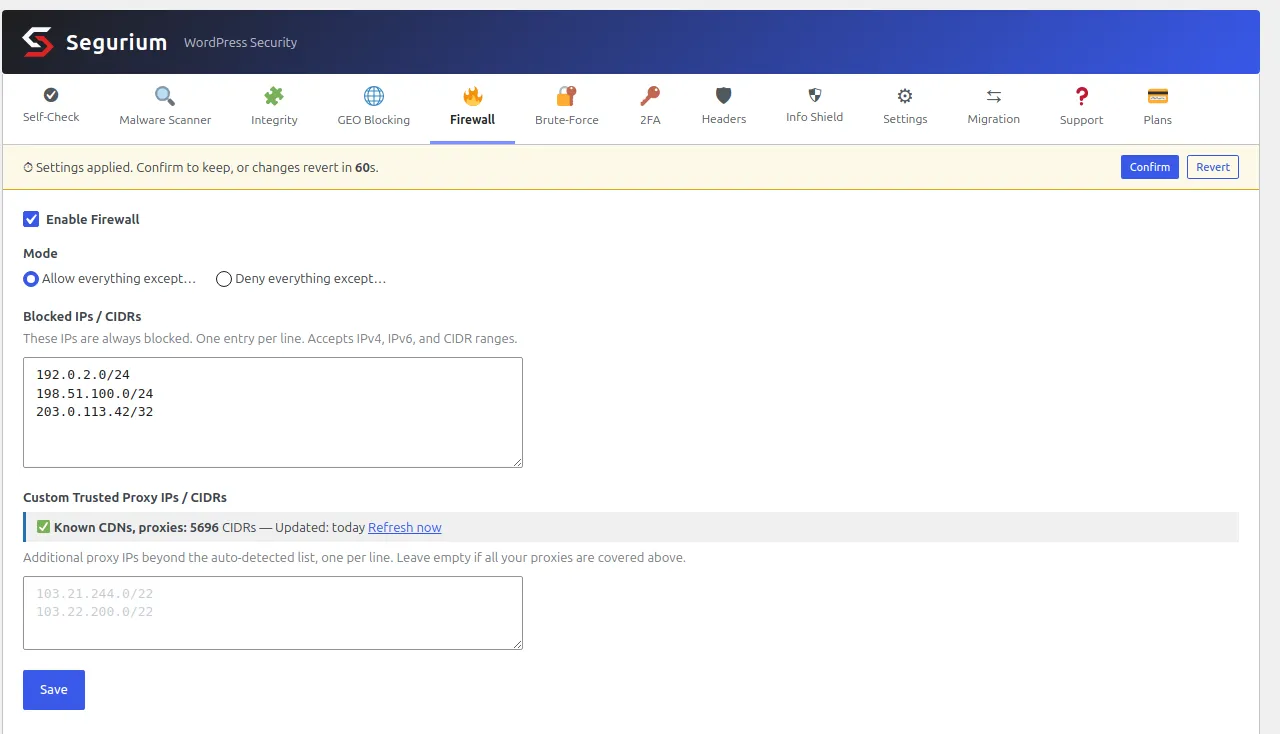
The two radio buttons are the choice from earlier on this page. "Allow everything except" is the deny list. "Deny everything except" turns the same box into an allow list, and every address not in it is refused.
One box takes both address families and both notations. The three entries
in the screenshot are a /24, another /24 and a
single address written as a /32; an IPv6 prefix such as
2001:db8:1234:5678::/64 goes in the same box on its own line.
A bare address with no slash is stored as a /32, or a
/128 for IPv6.
The status line under the second box is the proxy list from the previous section, refreshed daily and reporting 5,696 ranges on the install this was captured from. The box below it is for proxies of your own that no published list knows about, an in-house load balancer or a corporate egress gateway. Leave it empty if your traffic only passes through services the list already covers.
The banner across the top is the part worth pausing on. Saving an enabled firewall applies the change immediately and stages a revert 60 seconds later. Press Confirm and it sticks. Press Revert, close the tab, or lose access because the rule you just wrote excluded you, and the previous settings come back on their own. The check runs before the block does, so even a request from an address you have just locked out triggers the restore.
Two limits to know. The field does not reject a prefix that is out of
range for its address family: 192.0.2.5/33 was accepted and
stored as a rule that matched neither 192.0.2.5 nor
192.0.2.6, so read back what you typed. And an address in the
allow list is also exempt from login rate limiting, which is convenient
for an office address and worth knowing before you allow-list something
broad.
The rules, the proxy feed and the countdown all ship in every install at no cost, alongside the rest of the hardening features.
When you block yourself
It happens two ways. You deny a range that turns out to contain your own address, or you build an allow list and your address is not in it. Both look identical from the browser: every page of the site, including the login and the admin, answers 403 with a short "Access Denied" page. Static files still load, which makes it look like a half-broken site rather than a rule.
Work through these in order. Each one needs more access than the last.
- Wait 60 seconds. If you locked yourself out by saving from the settings screen and never pressed Confirm, the staged change reverts on its own. Reload after a minute before you touch anything else. This is the reason the countdown exists, and it is the fix for most lockouts.
- Come back from an allowed address. Tether to a phone, connect the VPN whose exit you allowed, or use any other network. A deny list rarely covers two networks at once.
- Turn the feature off over SSH. WP-CLI is the fastest route, with one flag that matters.
- Change the row directly in the database. Last resort, and it works when PHP will not run your commands at all.
WP-CLI, with plugins skipped
A plain WP-CLI command is not exempt from the rule you just wrote, and
the reason is worth understanding before you are in a hurry. WP-CLI 2.12.0
presents itself to WordPress with a client address of
127.0.0.1. An allow list that names your office address does
not name that one, so the firewall refuses the command line as well.
Measured on a live install in allow-list mode:
wp option get blogname exited with
Error: Access from your location is not allowed.
--skip-plugins loads WordPress without loading any plugin, so
nothing is there to block you. The same command with the flag printed the
site title, and the update below brought the site back to
200 on the next request.
wp --skip-plugins option update segurium_firewall_enabled 0

# Confirm from the outside
curl -s -o /dev/null -w "%{http_code}\n" https://example.com/
Read the rules back the same way before you switch it on again, so you can see which entry caught you.
wp --skip-plugins option get segurium_firewall_mode
wp --skip-plugins db query \
  "SELECT INET6_NTOA(ip) AS network, cidr_bits, list_type \
   FROM wp_segurium_ip_list WHERE source = 'firewall_rule';"
The database, when nothing else is available
phpMyAdmin, Adminer, or the mysql client. One statement, and
it works because the enabled flag is checked before any address list is
read, so nothing else has to be consistent for the site to come back.
UPDATE wp_options
   SET option_value = '0'
 WHERE option_name = 'segurium_firewall_enabled';
Change wp_ to your own table prefix. Setting the value back to
'1' re-enables the firewall with your rules intact, which was
verified in both directions on the checked install.
Do not try to fix this by deleting rows from the rules table instead.
Matching is served from a cached copy on disk that is rebuilt from a
version counter, and a hand-written DELETE does not touch the
counter. Measured: after deleting every rule row by hand, a fresh PHP
process still matched the deleted rule and kept blocking. The flag in
wp_options is the switch that always works.
Then make the lockout impossible next time
Before you re-enable an allow list, check your own address the way the server sees it, not the way an address-lookup site reports it, because the two differ the moment a proxy is involved. Load any page of your site and read the last line of the access log.
tail -1 /var/log/apache2/access.log | awk '{print $1}'
Put that address in the list, add whatever second network you can reach
the site from, and keep a terminal open until you have pressed Confirm
from a different browser. If your home connection has no fixed address,
allow the network rather than the address: your provider hands out from a
pool, so a /24 or the announced prefix from the
whois command earlier survives a router reboot that a
/32 does not.
Questions
- How many addresses does a /24 block?
- 256. The number after the slash counts the bits that are fixed, and the 32 minus that many bits left over are free, so a /24 fixes three of the four octets and covers x.y.z.0 through x.y.z.255. The three sizes worth memorising: /32 is one address, /24 is 256, /16 is 65,536. A /8 is 16,777,216 addresses, one in every 256 on the IPv4 internet, and almost nobody who types one means it.
- I typed 192.0.2.7/24 instead of 192.0.2.0/24. Does that matter?
- Not to the result. Every tool masks the address down to the prefix you gave, so 192.0.2.7/24 becomes 192.0.2.0/24 and blocks the same 256 addresses. It matters when the prefix is wrong: 192.0.2.7/8 quietly becomes 192.0.0.0/8. Measured on a live install, that rule blocked the whole 192.168 private range and 192.255.255.255 while 193.0.0.1 walked through. Write the network address so the number you see is the number you get.
- Why does my block do nothing when the site is behind Cloudflare?
- Because the address in the rule never reaches your server. Every request arrives from the proxy, so your web server sees a Cloudflare address and the visitor's address is only in a header. A rule against the client address matches nothing, and a rule against the proxy address matches everyone. Fix the proxy configuration first (set_real_ip_from on nginx, mod_remoteip on Apache), then write the rule, then check the log shows real client addresses again.
- Can I whitelist my IP for wp-admin and block everyone else?
- Yes, and it is the strongest rule on this page. It is also the one that locks people out, because most home connections get a new address on a router reboot or a lease renewal. Use it if you have a static office address, a VPN with a fixed exit, or a jump host. Before you save it, make sure you have a way back in that does not depend on the rule: SSH, WP-CLI with plugins skipped, or database access.
- Is blocking an IP inside WordPress worth anything, if PHP already ran?
- It stops the request reaching your login form, your content and your database queries, which is what most people want from it. It does not give back the CPU the request already spent, because PHP started and WordPress loaded before the rule was read. Measured on a live install, a blocked address got a 403 on the home page and on admin-ajax.php while a static JavaScript file still returned 200, because the web server answered that one without asking WordPress. If you control the server, put the rule in front of PHP. If you are on shared hosting, in WordPress is what you have.
- Does a /128 work for IPv6?
- It works, and it usually misses. A single machine normally holds a whole /64 and rotates its address inside that range on a timer, so the /128 you wrote this morning may not be the address it uses tonight. Write the /64 for one network. RFC 6177 leaves the assignment size to operators, drops the old fixed /48 default, and says an end site should get more than a single /64, so a persistent source behind a home connection is often better matched by a /56.