

Closing the doors
Two-factor authentication on WordPress
WordPress has no second factor of its own, so every route to one runs through a plugin or through code you write. Enrolment is the easy half. Rollouts break on the two parts nobody rehearses: enforcing it without locking the team out, and getting an account back in when the phone is gone.
What a second factor stops
A second factor makes a correct password insufficient. That covers the password leaked in someone else's breach and reused here, the one typed into a convincing fake login page, and the one guessed by a bot working through a list. All three end at a code prompt the attacker cannot fill.
It leaves plenty untouched. The guessing continues, because the attempts arrive whether or not they can succeed, and the load on wp-login.php is a separate problem with a separate fix. A stolen session cookie skips authentication entirely. So does a vulnerable plugin with a file upload in it. And if an attacker has already been in, the administrator account they left behind gets a second factor of its own the moment you turn this on, which protects their access rather than yours. Check the user list before you enforce anything.
Core gives you nothing here
There is no setting to find. WordPress 7.0.4 takes a username and a
password at wp-login.php, checks them, and issues the cookie.
No provider and no place to add one without code.
Application passwords, added in WordPress 5.6, are the thing people
mistake for the missing feature. They are not a second factor, and the
reason matters. Core refuses to consider one unless the request is a REST
API or XML-RPC call, so an application password fails at the login form
exactly like a wrong password. More importantly, core validates it on the
determine_current_user hook, which is not the
authenticate chain every 2FA implementation attaches to.
That was measured, not assumed. On a test install with 2FA switched on and
the account enrolled in an authenticator app, an application password
returned the full user object from the REST API with no code prompt at
all, while the same string was rejected at wp-login.php.
# Returns 200 and the user, second factor or not.
curl -s -u "editor:XXXX XXXX XXXX XXXX XXXX XXXX" \
  "https://example.com/?rest_route=/wp/v2/users/me"

wp user application-password list editor
List them for every account with a role above subscriber and revoke the ones nobody recognises. An application password created by an intruder survives a password change: core only deletes them when somebody presses Revoke. The feature plugin in the next section takes the same line and permits an API login on an application password by design, so this is not one implementation being careless.
What TOTP is, in plain terms
Your authenticator app and your site hold the same secret string, agreed once when you scan the QR code. Both sides take the current time, chop it into thirty-second slots, mix the slot number with the secret, and read six digits out of the result. Nothing travels between them, which is why the app works on a plane. The only thing they share afterwards is the clock, so a phone whose time has drifted stops producing codes the site accepts. How much drift is forgiven varies: the feature plugin below allows two minutes either side of the current slot by default, tighter implementations allow thirty seconds. When codes start being refused for one account, check that phone's clock before anything else.
A recovery code, also sold as a backup code, is the paper key. It is a long random string generated at setup, valid once, and useful precisely when the app is not: a dead phone, a wiped handset, a stolen bag. Print them or put them in a password manager on a different device. Storing them in a note on the same phone that holds the authenticator defeats the purpose.
Set one up by hand
The route with no product attached is the feature plugin WordPress.org
publishes itself. It is called Two Factor, its slug is
two-factor, and version 0.16.0 was current when this page was
checked on 18 August 2026. It carries roughly 100,000 active installs,
wants WordPress 6.8 and PHP 7.2, and was last updated on 27 March 2026.
wp plugin install two-factor --activate
Four providers ship in it. An authenticator app over TOTP, one-time codes
by email, ten recovery codes, and a dummy provider that always succeeds
and only loads under WP_DEBUG. Its readme records that FIDO
security keys were removed for lack of browser support, so hardware keys
are not an option here.
- Each user enrols themselves at Users then Profile, in a section headed Two-Factor Options. There is no way to enrol somebody else on their behalf, because the secret has to reach their phone and not yours.
- Tick a provider, follow its setup, then pick a primary method. If you signed in more than ten minutes ago the plugin asks you to revalidate your session before it lets you change anything.
- Tick recovery codes as well, always. The plugin nags about this for a reason, and the rest of this page is about what happens when nobody listened.
- As an administrator, visit Settings then Two-Factor. That screen does one thing: it decides which providers exist on the site. It is not an enforcement screen.
Once a user is enrolled the login stops. Posting a correct
password to wp-login.php on the test install returned a
challenge screen and no session cookie.
What it does not give you
Three gaps decide how much extra work you are signing up for. There is no way to require 2FA for a role: a search for role handling across the whole plugin turns up nothing but table markup. There is no grace period, because there is nothing to grant grace from. And there is no trusted device option, so every login asks for a code.
The fourth gap is the expensive one. There is no central screen for clearing a locked-out user. An administrator can open that person's profile and untick their providers, which works while at least one administrator can still log in. When none can, you are on the command line in the last section of this page.
Its state lives in four user meta keys, worth writing down before you need
them: _two_factor_enabled_providers,
_two_factor_provider, _two_factor_totp_key and
_two_factor_backup_codes.
Enforce it by role without a lockout
Optional 2FA protects the people who were already careful. Enforcement is where the security arrives, and it is where rollouts fail. Two numbers decide the outcome: which roles must comply, and how long they get before the door shuts.
Get the second number wrong and you lock out your own team. Enforce administrators and editors with no grace on a site with four authors, and the next person to sign in is refused, cannot enrol because enrolment lives behind the login, and has to ring you. On the test install an unenrolled editor in an enforced role with the grace period at zero was turned away at the login form with a message telling them to contact their administrator. The plugin did its job, and you now have a support queue you created.
Enrol your own account first, then enforce. An administrator who switches on enforcement for their own role while unenrolled is one logout away from the last section of this page.
Enforcement in about forty lines
The feature plugin exposes
Two_Factor_Core::is_user_using_two_factor(), which is all you
need. Hook the authenticate filter after the plugin has done
its work, stamp a start date on the user the first time you see them, and
refuse once the window has passed. Save this as
wp-content/mu-plugins/require-2fa.php, where it loads on
every request and cannot be deactivated from the admin by accident.
<?php
/**
 * Plugin Name: Require two-factor by role
 */

add_filter(
    'authenticate',
    function ( $user ) {
        $roles      = array( 'administrator', 'editor' );
        $grace_days = 7;

        if ( ! $user instanceof WP_User || ! class_exists( 'Two_Factor_Core' ) ) {
            return $user;
        }
        if ( Two_Factor_Core::is_user_using_two_factor( $user->ID ) ) {
            return $user;
        }
        if ( ! array_intersect( $roles, (array) $user->roles ) ) {
            return $user;
        }

        $started = (int) get_user_meta( $user->ID, 'require_2fa_grace_start', true );
        if ( 0 === $started ) {
            $started = time();
            update_user_meta( $user->ID, 'require_2fa_grace_start', $started );
        }
        if ( time() - $started < $grace_days * DAY_IN_SECONDS ) {
            return $user;
        }

        return new WP_Error(
            'require_2fa',
            'Error: Your role requires two-factor authentication. Ask an administrator for help.'
        );
    },
    100
);
Both halves were exercised on the test install. A fresh unenrolled editor
was let through and had require_2fa_grace_start written on
the way past. The same account, with that stamp backdated eight days, was
refused with the message above.
Priority 100 matters. Core resolves the password at priority 20 and the
feature plugin attaches at 31, so anything earlier than that receives a
null instead of a user and decides nothing. Note also what the code does
not do: it never tells the user how many days remain. Add that as an
admin_notice counting down from the same meta value, or your
grace period is a surprise rather than a warning.
When the clock starts
This is the subtlety that turns a seven-day window into a seven-week one. The code above stamps the start date at the user's first login attempt after enforcement goes live, so a contributor who is away for a month begins their week on the day they come back. That is forgiving, and it means your rollout is not finished when you think it is.
The stricter reading starts every clock the moment you save the policy, by writing the stamp for every unenrolled user in the affected roles right then. Everyone's deadline is the same calendar date and the rollout has an end. It also means somebody who never logs in during that fortnight is locked out on sight. Pick deliberately, and tell people which one you picked.
Prove it is switched on
Two checks, in this order, and do them before you enforce rather than after. First, ask the database who is enrolled. Enrolment leaves a user meta row, so a count of those rows against your user list tells you exactly who is about to be refused.
wp config get table_prefix

wp db query "SELECT u.ID, u.user_login, m.meta_value AS method
  FROM wp_users u
  JOIN wp_usermeta m ON m.user_id = u.ID
  WHERE m.meta_key = '_two_factor_provider';"
Swap the key for _segurium_2fa_method if you are using the
module in the next section. Both queries return one row per enrolled
account and nothing for the rest, which is the list you compare against
wp user list --fields=ID,user_login,roles. If that comparison
leaves anybody in an enforced role unaccounted for, your grace period is
the only thing standing between them and a support ticket.
Second, log in for real. Use a private browser window and a spare account whose password you are willing to lose, because a session you already have is not re-checked. The prompt should appear after the password step and before the dashboard. If you go straight through, either the account is not enrolled or the plugin is not doing what you think.
wp user session list editor
wp user session destroy editor --all

# Every user on the site, from the command's own help text.
wp user list --field=ID | xargs -n 1 wp user session destroy --all
Those are how you make an open session meet the new rule. The first form takes one account. The second drops everybody at the login form the next time they click, which includes you, so announce it and have your own code to hand.
The same four settings on one screen
Everything above is policy you wrote yourself, in a file you now have to
maintain. Segurium ships the same policy as four fields. Open
wp-admin/admin.php?page=segurium and pick the 2FA tab.
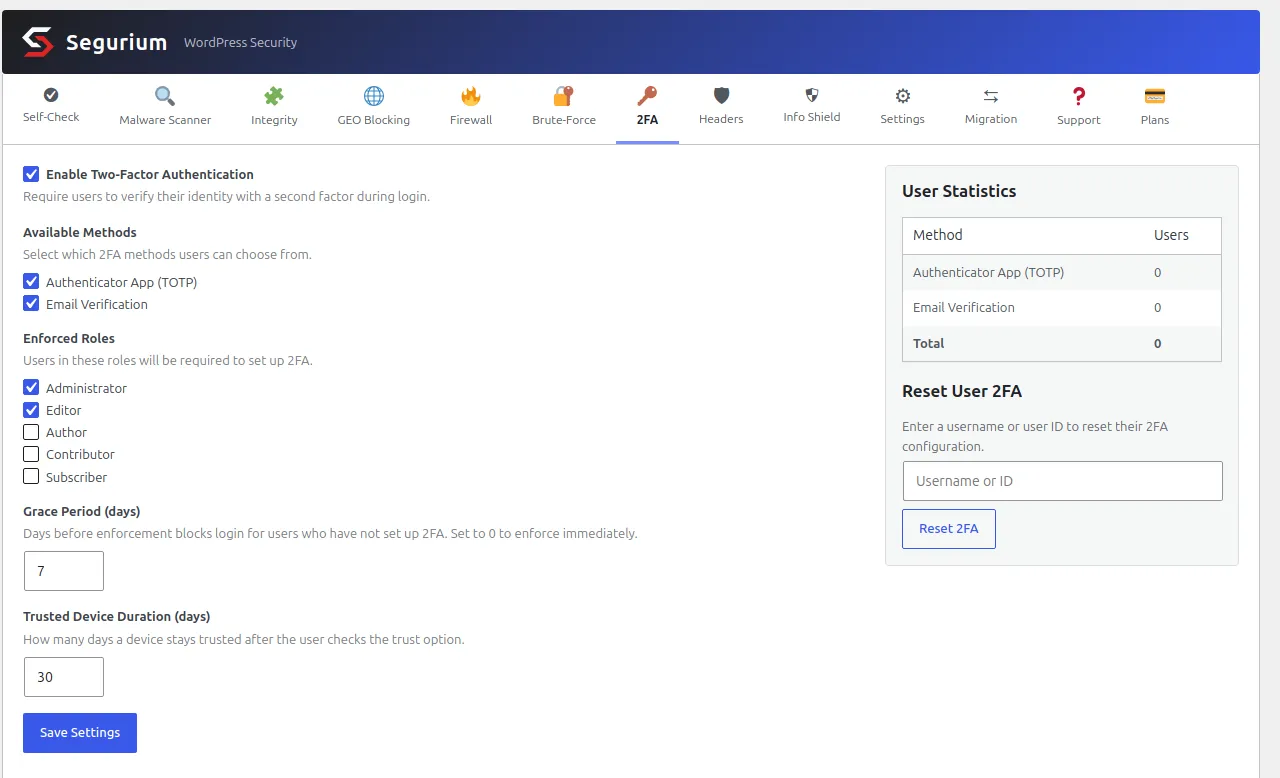
The left column is the policy from the previous two sections. Available methods decides what users may choose, an authenticator app or a code by email. Enforced roles is a tick box per role on the site. Grace period accepts nothing above 30 days, and zero means the block applies at the next login, exactly as described above. Trusted device duration is capped at 365.
Trusted devices are a trade you should make on purpose. Tick the box at login and that browser skips the code prompt until the duration runs out, which is pleasant on your own laptop and is a password-only door for anyone who reaches that machine or copies the cookie out of it. The expiry is stamped when the box is ticked, so shortening the setting afterwards does not shorten devices that are already trusted. Set it to zero if you do not want the trade at all.
The right column is the part that gets used at nine in the morning. The table counts who is enrolled by method, which saves you the query from the last section. Below it, Reset User 2FA takes a username or a user ID and clears that person's enrolment: secret, method, backup codes, trusted devices, the setup date and their grace stamp, six rows at once. It needs administrator rights, and it means a locked-out colleague costs one field and one button rather than a database client.
Two things are worth knowing before you switch it on. A user in an enforced role cannot turn their own second factor off, by design: the button is not rendered and the endpoint refuses the request. And the login prompt is driven by JavaScript, so a browser with scripting disabled gets a message rather than a code box. If you are moving from Wordfence Login Security, the Migration tab reads its stored authenticator secrets and recovery codes, so enrolled users keep the entry already in their app.
Every control on that screen ships in every install at no cost. The rest of what comes with it is listed under hardening on the features page.
Getting back in
Most guides on this subject end at enrolment. The support calls start here. Three situations, in increasing order of pain.
The phone is gone and the codes are not
Type a recovery code where the six digits go. It is accepted once and then burned: on the test install the count went from ten to nine and the same code was refused on the second attempt. Sign in, open your profile, and regenerate the set immediately, because the count on that screen is the number of times you can survive this. Regenerating asks for a current code first, so do it while you still have one.
The codes are spent too
Somebody with administrator rights clears your enrolment, and you enrol again from scratch. On the plugin above, that means opening your user in Users and unticking your providers. On the module in the previous section it is the reset field.
Check the grace period before you do this. Clearing an enrolment turns the user back into somebody who has not enrolled, and if the grace period is zero they are refused again the moment they try, with a different message that sends them back to you. Raise the grace period to a day, clear the enrolment, let them re-enrol, then put it back.
Nobody can log in at all
Now you need shell access, and the fix is deleting user meta. Look before you delete: the row list tells you whether the enrolment is there.
wp user meta list admin \
  --keys=_segurium_2fa_secret,_segurium_2fa_method,_segurium_2fa_backup,_segurium_2fa_trusted,_segurium_2fa_setup_at,_segurium_2fa_grace_start \
  --fields=user_id,meta_key
An enrolled account normally shows five of those six.
_segurium_2fa_trusted only exists once that user has trusted
a device. Then remove them.
for key in _segurium_2fa_secret _segurium_2fa_method _segurium_2fa_backup \
           _segurium_2fa_trusted _segurium_2fa_setup_at _segurium_2fa_grace_start
do
  wp user meta delete admin "$key"
done
A key that was not there answers "Error: Failed to delete custom field."
and exits non-zero. That is the loop telling you the row did not exist,
not a failure. For the feature plugin the same loop takes
_two_factor_enabled_providers,
_two_factor_provider, _two_factor_totp_key and
_two_factor_backup_codes.
If WP-CLI is not available, or you are inside phpMyAdmin because that is
all your host offers, one statement does the same job. Confirm your table
prefix first, because wp_ is a default and not a promise.
SELECT user_id, meta_key FROM wp_usermeta
  WHERE meta_key LIKE '_segurium_2fa_%';

DELETE FROM wp_usermeta
  WHERE user_id = 1 AND meta_key LIKE '_segurium_2fa_%';
Run the SELECT first and read it. On the checked install the DELETE
reported five rows affected and the follow-up count returned zero. Use
'_two_factor%' for the feature plugin. Always scope the
statement to one user_id: dropping the WHERE
user_id clause unenrols the entire site, which is a much larger
incident than the one you started with.
Two things bite afterwards. If the site runs a persistent object cache,
the deleted rows can still be served from memory, so follow a direct SQL
delete with wp cache flush. And the user is now unenrolled in
a role you may still be enforcing, so read the paragraph above about the
grace period before you hand the password back.
Whichever route you took, treat the account as compromised until you know otherwise. Change the password, revoke its application passwords, and destroy its sessions. Most of the time a lost phone is a lost phone. When the user cannot explain why their second factor stopped working, treat it as an incident.
Questions
- Does two-factor authentication stop brute force attacks?
- It stops them succeeding. It does not stop them happening. Every guess still reaches PHP, still opens a database connection, and still costs you the CPU time. On a site under a sustained login flood the load is the problem long before the password is. Rate limiting and 2FA solve different halves, and a site that needs one usually needs both.
- Are WordPress application passwords a second factor?
- No, and they are the most common misreading of what core gives you. An application password authenticates REST API and XML-RPC requests only. Core checks for XMLRPC_REQUEST or REST_REQUEST before it will accept one, so it is refused at wp-login.php like any wrong password. It is also validated on determine_current_user rather than through the authenticate filter, which is the hook every 2FA plugin uses. Measured on a live install: a user enrolled in TOTP, 2FA switched on, and an application password still returned that user's full profile from the REST API with no code prompt. Treat each one as a password with no second factor attached and revoke the ones you do not recognise.
- I have lost the phone and used all the backup codes. How do I get in?
- Someone else clears your enrolment. An administrator can do it from the plugin's own screen. If nobody can log in at all, you need shell or database access: delete the user meta rows that hold the enrolment, then log in with the password alone and enrol again. Both routes are on this page. Check the grace period before you clear anything, because clearing an enrolment on a site with a zero-day grace hands the user straight back to the enforcement block.
- Can I send codes by SMS?
- Neither WordPress core nor the two-factor feature plugin ships an SMS provider. Adding one means a third-party plugin plus an account with a gateway, and per-message costs from the day you switch it on. Weigh that against an authenticator app, which costs nothing, works with no signal, and is not exposed to a SIM swap on your telephone account.
- What grace period should I set?
- Long enough that everyone in the enforced roles logs in at least once inside it. Administrators and editors who work daily are fine with three days. A site with contributors who post twice a month needs two weeks or more, or those accounts hit the wall on their next visit with no warning they ever saw. Zero is only correct when every account in the role is already enrolled and you have checked that, not assumed it.
- Does turning 2FA on log everyone out?
- No. The check runs when someone authenticates, so an open session keeps working until its cookie expires. That is convenient for you and a hole in the rollout: the colleague who never signs out will not be challenged for weeks. Run wp user session destroy <user> --all to drop a single account, or pipe your user list through it to drop everybody, and warn them before you do.