

Closing the doors
Compare your files against the published originals
Every WordPress release, and every plugin on WordPress.org, ships with a published list of file hashes. Comparing your install against that list takes one command and answers one narrow question honestly. The traps are in the answers that look like a pass.
What a checksum comparison answers
One question, and only one. Is this file byte for byte the file WordPress.org published for the version you are running? The answer is yes or no. There is nothing else in it.
A hash cannot tell malicious from harmless. A managed host that patches a core file, a developer who edited one in 2019, and a backdoor written into the same file this morning all come back as the identical verdict. Reading the difference is your job, and working out whether a detection is right is the page for that.
A hash also has nothing to say about a file with no published original.
wp-config.php, your uploads, your child theme, the plugin you
paid for: none of those has an upstream copy anyone can compare against.
They are covered in the last section, because a silence in that area reads
exactly like a pass and is not one.
What the comparison is good at is the part humans are bad at. Core alone is several thousand files. On the install checked for this page, WordPress 7.0.4 carries 3,945 published entries. You are not going to eyeball that.
Check WordPress core, and the two traps
With WP-CLI available, core takes one command. Find your version first, because the comparison is per release and a neighbouring version produces hundreds of meaningless differences.
wp core version
wp core verify-checksums
A clean install answers in one line, and that line is all you get.
Success: WordPress installation verifies against checksums.Here is the same command on an install with damage. Five findings, and the last line sets the failure.
$ wp core verify-checksums
Warning: File doesn't verify against checksum: wp-admin/about.php
Warning: File should not exist: wp-includes/unexpected_wp_includes.php
Warning: File should not exist: wp-config-backup.php
Warning: File should not exist: wp-admin/includes/index-injected.php
Warning: File should not exist: wp-admin/unexpected_wp_admin.php
Error: WordPress installation doesn't verify against checksums.
$ echo $?
1
Trap one: an added file is a warning, and warnings do not fail
Only two things make this command fail: a file that differs, and a file that should be there and is not. A file that should not be there prints a warning and then the success line, and the exit code stays at zero. Measured on a clean copy of 7.0.4 with one file added:
$ wp core verify-checksums
Warning: File should not exist: wp-includes/zz-extra.php
Success: WordPress installation verifies against checksums.
$ echo $?
0
It gets worse if you are scripting it. The warnings go to stderr and the success line goes to stdout, so the order you see depends on how your shell captures them, and redirecting stderr away hides the finding entirely.
$ wp core verify-checksums 2>/dev/null
Success: WordPress installation verifies against checksums.
That behaviour held at every depth tested: directly under
wp-includes/, inside wp-includes/blocks/, inside
wp-includes/blocks/paragraph/, inside
wp-includes/js/dist/, and inside wp-admin/css/.
A .txt behaves the same as a .php. Read the
warnings. Never gate a monitoring job on the exit code alone.
Trap two: the scan of your web root is name-gated
In wp-admin/ and wp-includes/, every file is
checked. In the install root, only files whose names begin with a
lowercase wp- are looked at. Everything else is invisible.
Tested one at a time on a clean install: wp-config-backup.php,
wp-zz.php, wp-login2.php and even
wp-zz.txt were all reported. zz-extra.php,
index2.php and WP-ZZ.php produced nothing at
all. An attacker who names their dropper radio.php instead
of wp-radio.php is past this check for free.
--include-root widens it to everything in the root
directory. On the install that produced the damaged output above, one
more finding appears the moment you pass it:
$ wp core verify-checksums --include-root
Warning: File doesn't verify against checksum: wp-admin/about.php
Warning: File should not exist: wp-includes/unexpected_wp_includes.php
Warning: File should not exist: unexpected_wp_core.php
Warning: File should not exist: wp-config-backup.php
Warning: File should not exist: wp-admin/includes/index-injected.php
Warning: File should not exist: wp-admin/unexpected_wp_admin.php
Error: WordPress installation doesn't verify against checksums.
unexpected_wp_core.php had been sitting in the web root
through every earlier run. Use the flag every time. It is still warning
level, so trap one applies to its findings too.
Two things this command never looks at, whatever flags you pass.
wp-config.php is excluded by name. And every
wp-content entry is discarded before the comparison runs,
even though the published data for your version contains some. Your
themes, your plugins and your uploads are outside this check completely.
Check plugins, and the theme you cannot check
Plugins have their own manifests, one per version, published at
downloads.wordpress.org/plugin-checksums/<slug>/<version>.json.
WP-CLI reads them for you.
wp plugin verify-checksums --allFindings come back as a table, one row per file. This is a plugin with one line appended to an existing file and one file added:
plugin_name  file           message
akismet      zz-shell.php   File was added
akismet      index.php      Checksum does not match
Error: No plugins verified (1 failed).
Three limits sit behind that output, and the third is the one that costs people an incident.
- WordPress.org plugins only. The manifest has to exist. Nothing else is consulted, and the vendor of a paid plugin does not publish one.
- Must-use plugins are not included. On the checked install
wp plugin listprinted eleven rows, two of them must-use, and--allcounted nine. Anything inwp-content/mu-plugins/loads on every request, cannot be deactivated from the admin, and is not verified here. -
readme.txtandreadme.mdare treated as soft changes and ignored unless you add--strict.
A plugin with no manifest passes by not being examined
This is the second silence that reads like a pass. A scratch plugin carrying a version WordPress.org has never published produced this, and exited zero:
$ wp plugin verify-checksums acme-pro
Warning: Couldn't fetch response from https://downloads.wordpress.org/plugin-checksums/acme-pro/3.2.1.json (HTTP code 404).
Warning: Could not retrieve the checksums for version 3.2.1 of plugin acme-pro, skipping.
Success: Verified 0 of 1 plugins (1 skipped).
Read the count, not the verb. Verified 0 of 1 means your
premium plugin was never opened. Under --all the same
situation is folded into a summary line that is easy to skim past:
Only verified 8 of 10 plugins (1 failed, 1 skipped). The
skipped one needs a manual comparison from the vendor's own download.
Themes have no checksums at all
Much of the web tells you to run wp theme verify-checksums.
It is not a command.
$ wp theme verify-checksums --all
Error: 'verify-checksums' is not a registered subcommand of 'theme'. See 'wp help theme' for available subcommands.
There is no API behind it either. The checksum route that exists for plugins has no theme equivalent, and requesting one returns 404. WordPress.org publishes checksums for core and for plugins, and that is the whole list. Every theme on your site, including the default ones, has to be checked the manual way.
The same comparison with no WP-CLI
Shared hosting often gives you no shell, and themes give you no choice anyway. The manual method is the same idea done with two commands: fetch the exact published copy, and compare directories.
Everything turns on the word exact. A version that is one patch off
produces hundreds of differences and buries the real ones. Get the version
from the admin dashboard, from
wp-includes/version.php, or from the Plugins screen, and
match it character for character.
Core
cd ~
curl -O https://wordpress.org/wordpress-7.0.4-no-content.zip
unzip -q wordpress-7.0.4-no-content.zip

diff -rq --exclude=wp-content ~/wordpress /var/www/html/wp
Unpack outside the web root. A directory called
wordpress/ sitting inside your public folder is a second copy
of WordPress that anyone can reach, and people forget to delete it. Your
home directory is fine. So is /tmp on a server you control.
The -no-content archive is the one to use, because it carries
no wp-content entry at all and cannot confuse the comparison
with bundled themes you removed on purpose.
Putting the original files
back covers the two archives, the version numbers that no longer
download, and the 404 that arrives wearing a filename.
Real output from the install used throughout this page, trimmed to the lines that mean something:
Only in /var/www/html/wp: unexpected_wp_core.php
Files ~/wordpress/wp-admin/about.php and /var/www/html/wp/wp-admin/about.php differ
Only in /var/www/html/wp/wp-admin/includes: index-injected.php
Only in /var/www/html/wp/wp-admin: unexpected_wp_admin.php
Only in /var/www/html/wp: wp-config-backup.php
Only in /var/www/html/wp/wp-includes: unexpected_wp_includes.php
Five of those six are the findings WP-CLI produced on its own. The sixth,
unexpected_wp_core.php, is the root file WP-CLI needed
--include-root to see, and it is here with no flag at all.
Directory comparison has no name gate.
The full run printed eighteen lines, not six. The other twelve were
Only in lines naming directories such as
wp-includes/blocks/tabs, all of them empty on disk and left
behind by an earlier version change. diff reports
directories; verify-checksums ignores them. Before you treat
an Only in line as a finding, check whether it names a file
or a folder, and whether that folder has anything in it.
Plugins and themes
Same shape, one archive per component, version pinned in the URL.
cd ~
curl -O https://downloads.wordpress.org/plugin/akismet.5.7.zip
curl -O https://downloads.wordpress.org/theme/twentytwentyfour.1.5.zip
unzip -q akismet.5.7.zip
unzip -q twentytwentyfour.1.5.zip

diff -rq ~/akismet /var/www/html/wp/wp-content/plugins/akismet
diff -rq ~/twentytwentyfour /var/www/html/wp/wp-content/themes/twentytwentyfour
Drop the version from either URL and you get the current release, which is the wrong thing to compare against in the middle of an incident. Get your installed versions first:
wp plugin list --fields=name,version
wp theme list --fields=name,version
With no shell at all, the Plugins and Themes screens in the admin show the same version numbers, and you can do the comparison on your own machine after downloading the site over SFTP. It is slow and it works.
Modified, missing, extra: reading the result
Whatever tool you used, every finding lands in one of three buckets. They deserve different reactions.
| Outcome | What it means | How likely it is innocent |
|---|---|---|
| Modified | The file exists upstream and your copy differs. WP-CLI says "doesn't verify against checksum" for core, "Checksum does not match" for a plugin. | Often. Host patches, old developer edits, and a version whose checksums are not published yet all land here. |
| Missing | The published list has the file and your disk does not. WP-CLI says "File doesn't exist". This is one of the two conditions that actually fails the core command. | Sometimes. A half-finished update, a failed FTP transfer, or a previous cleanup that deleted too much. |
| Extra | A file with no upstream counterpart. WP-CLI says "File should not exist" for core and "File was added" for a plugin. | Rarely, inside a core directory. Read on. |
Why an extra PHP file in wp-includes is the interesting one
A modified file has a queue of honest explanations waiting for it. An added file inside a core directory has almost none.
The file list for a WordPress release is fixed. Core never writes new PHP
into wp-includes/ while it runs, and an update ships the
files the release contains rather than inventing extras. Plugins have no
business writing there, and neither does your theme. Nothing in a normal
WordPress lifecycle produces a new .php file in that
directory, which leaves a short list of things that did.
The location is also the point. A backdoor in
wp-includes/ loads on every request, sits among three
thousand files nobody reads, and carries a name built to be skipped:
wp-cache.php, class-wp-index.php,
unexpected_wp_includes.php. Deactivating every plugin does
not touch it. Reinstalling core does not remove it either, because a
forced re-download writes the files the archive contains and walks past
everything else.
And this is the outcome every tool ranks lowest. It is a
warning, the exit code stays at zero, and in your web root it is invisible
unless the filename happens to start with wp-. The finding
most likely to be an attacker is the finding easiest to miss.
Extra files under wp-content/ are a different matter and are
mostly normal: caches, logs, generated CSS, data a plugin wrote about
itself. Judge those by what is in them.
The three checks that
separate a real detection from a false flag apply to all three
buckets, and they settle most files in about five minutes.
Running all three components in one pass
Done by hand this is one comparison repeated: core with one command, plugins with another, themes with an archive and a diff, and a manual pass over the components neither command will touch. Segurium runs the three together and reports them in one table.
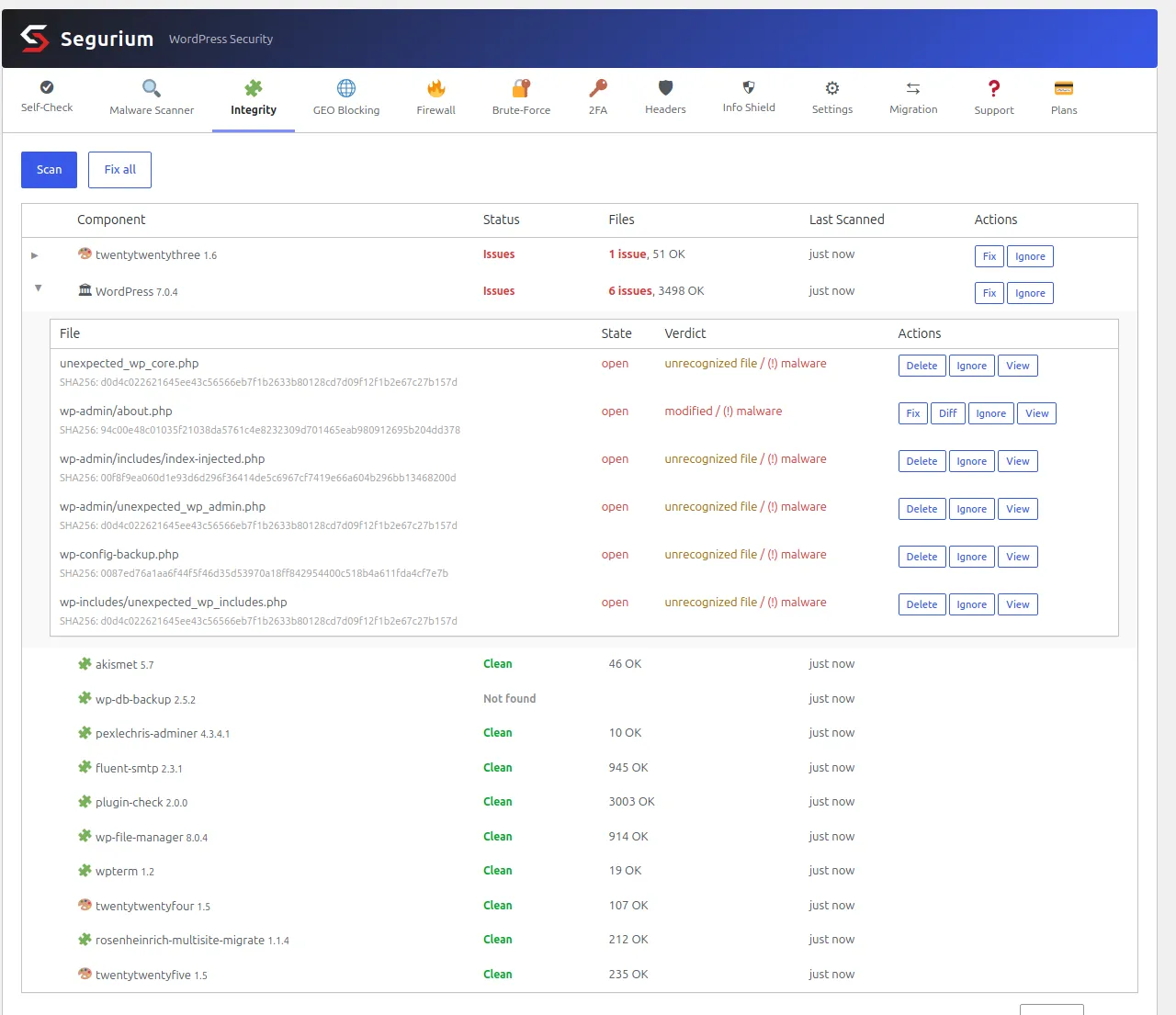
The component table is the summary: one row per plugin, per theme and one
for core, each with a status, the number of findings against the number of
files that matched, and when it was last checked. Expanding a row opens
the file level, which is where the three buckets from the previous section
appear by name. wp-admin/about.php is marked modified and
offers a Diff you can read before you touch it. The five added files are
marked unrecognised and offer Delete instead of Fix, because there is
nothing to restore them to.
One row in that screenshot is worth more than the findings.
unexpected_wp_core.php sits at the top of the expanded list,
in the web root, with a name that does not start with wp-.
That is the exact file wp core verify-checksums stayed silent
about until --include-root was passed.
What a fix costs is worth stating plainly. Putting back a file that is merely wrong is unlimited on every install: modified, missing and extra files that the malware scan did not flag are all free, however many of them there are. A fix on a file the scanner separately judged infected is a cleanup wearing a different button, and it draws on the same free allowance of three files per rolling thirty days.
The scan and the manifests ship in every install at no cost, alongside the rest of the hardening features.
What no checksum comparison sees
This section is the reason the page is worth reading twice. Everything below applies to the manual method and to any tool that automates it, ours included, because they are all the same comparison against the same published data.
Files with no published original are never fingerprinted
Some files are yours or your host's, and no upstream copy exists to compare them against. They are skipped by design rather than by accident: flagging your own configuration on every scan would train you to ignore the report. The list is short and specific.
- Configuration.
wp-config.php,.htaccess,.htpasswd,.user.ini,php.ini,wp-includes/version.php. - Site-level files you or a service put there.
robots.txt,sitemap.xml,favicon.ico, search-engine verification pages, anything under.well-known/, and your host's health-check page. - Noise. Anything ending
.log,error_log,.DS_Store,Thumbs.db.
Your manual diff has the same hole, since the archives
contain none of those files either. Read them yourself.
The files you must not
overwrite covers what to do when one of them is wrong.
Most of wp-content has no manifest at all
Plugins and themes are checked as components in their own right, each
against its own published list. Everything else under
wp-content/ is outside the walk entirely, and that includes
three places attackers like:
-
wp-content/uploads/. No manifest exists and none could. A PHP file in there is worth investigating on its own merits, and nothing in this page will find it for you. -
wp-content/mu-plugins/. Loads on every request, has no activation record, and cannot be switched off from the admin. - Drop-ins.
advanced-cache.php,object-cache.php,db.phpand their siblings sit directly inwp-content/and are loaded by core.
Find those with a file walk instead of a checksum comparison.
find wp-content/uploads -name "*.php" and
ls -la wp-content/mu-plugins/ take a second each and cover
ground no manifest reaches.
A component nobody can resolve is listed, never compared
Your premium plugin, your custom theme, your child theme. When the version
cannot be matched to anything upstream, the component still appears in the
report, marked as not coming from WordPress.org, and not one file inside it
is compared. That is the same silence WP-CLI expresses as
Verified 0 of 1 plugins (1 skipped).
No finding there means nobody could check, not that the check passed. Those components need the vendor's own download and a manual diff, and a child theme needs your version control or a known-good backup, because it was never published anywhere.
A brand new version reads as if every file were wrong
When a release ships before its checksums are published, the manifest lookup returns nothing and every file in that component resolves to the same unknown answer at once. One measured case: the checksums file appeared about nine hours after the version went live, and a scan inside that window reported 326 issues and 0 OK for a component nobody had touched.
The tell is the shape. Real damage is a handful of files. A component going from clean to entirely unrecognised in one step, right after you updated it, is the directory catching up. Wait a day, run the comparison again, and only then start reading files.
It looks backwards, and only when you run it
A comparison tells you a file changed after the fact. It changed nothing about whether the change could happen, and between two runs you are blind. Run it on a schedule, and run it after every update, every plugin install and every incident.
It also says nothing about what an injected file did while it was there.
A dropper in wp-includes/ usually earns its keep by serving
JavaScript to your visitors, and the layer that limits what such a script
can load or send is your response headers.
Adding the security
headers, including a Content Security Policy is the part of this that
runs on every request rather than when you remember.
Questions
- wp core verify-checksums said Success. Is my site clean?
- It means no core file was changed or deleted. It does not mean nothing was added. An extra file under wp-admin or wp-includes prints a warning, and the command still says Success and still exits 0. Warnings go to stderr and the success line goes to stdout, so a script that captures only stdout sees nothing but the good news. Read the warnings and never gate a pipeline on the exit code alone.
- Is there a wp theme verify-checksums?
- No. The command is not registered and the checksum route behind it returns 404. WordPress.org publishes checksums for core and for plugins, and nothing at all for themes. Guides that tell you to run it did not run it. To check a theme, download the same version, unpack it outside the web root, and diff the two directories.
- My premium plugin passed. Does that mean anything?
- It means nobody checked it. A plugin whose version has no manifest on WordPress.org is skipped, and the command still prints Success. Read the count rather than the verb: verified 0 of 1 plugins with 1 skipped is a silence, not a pass. The same applies to a custom or child theme, which has no upstream copy anywhere.
- Why does an added file matter more than a modified one?
- Because a modified file has honest explanations and an added one mostly does not. Your host patches core, a developer edited a file years ago, or the published checksums for a brand new version are not up yet. None of those puts a new PHP file inside wp-includes. The file list for a given release is fixed, so anything extra in there was placed by something.
- A whole plugin lit up as unrecognised at once. Is that an attack?
- Usually it is a version that shipped before its checksums did. Every file resolves to the same unknown answer in the same instant, which no attacker bothers to do. One measured case: the checksums file appeared about nine hours after the release went live, and a scan inside that window reported 326 issues and 0 OK for a component nobody had touched. Wait a day and run it again before you act.
- Does any of this check wp-config.php?
- No, and nothing can. There is no published original to compare against, because the file holds your database credentials, your salts and your table prefix. No release archive contains one. The same is true of your .htaccess, your uploads and any code you wrote yourself. Those need judgement about what is in them, not a hash.